
Install Yandere Simulator Guide: Open-World School Simulation on PC
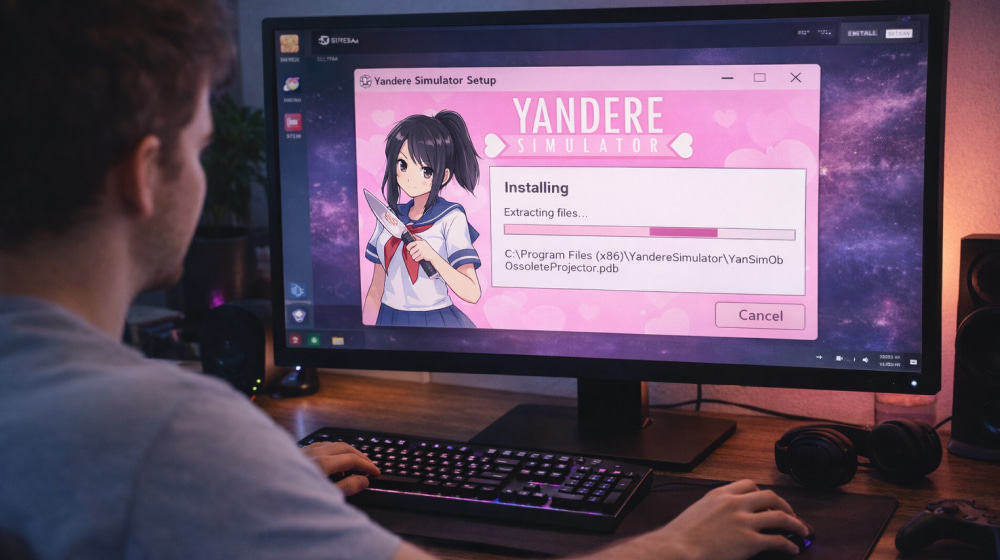
Install Yandere Simulator on Windows
Get NowGetting a new PC game running should feel simple: download, unpack, launch, and play. In practice, Windows permissions, antivirus scans, and missing runtimes can turn a quick setup into a frustrating loop. This guide walks you through a clean, repeatable process that keeps things safe, organized, and easy to troubleshoot. Before you start, it helps to install Yandere Simulator from the official download page rather than random mirrors.
What You’ll Need Before You Begin
- Enough storage: keep several GB free for downloads, extraction, and future updates.
- A stable connection: especially if you’re downloading a large archive or using a launcher.
- A sensible install folder: avoid protected locations like Program Files when possible.
- Patience for first launch: Windows Defender may scan the files the first time you run the game.
Tip: Create a dedicated folder for indie and in-development games (for example, C:\Games). It keeps permissions simple and makes backups painless.
For most players, a smooth Yandere Simulator install begins with checking free disk space and keeping Windows updated.
Recommended Download Options
The developer provides an official download page and a launcher-style option, which can be convenient if you want built-in updating. If you want to install Yandere Simulator for free, stick to the developer’s publicly released builds and avoid unofficial repacks.
Quick Safety Checklist
- Download only from the official site or the developer’s linked pages.
- Skip “bundle installers” from third-party sites that add extra software.
- Keep the download in your Downloads folder until Windows finishes scanning it.
- Only move files to your game folder after extraction completes without errors.
Step-by-Step Installation (Clean Method)
- Create a folder: make something like C:\Games\YandereSimulator (any short path is fine).
- Download the official build: choose either the launcher method or a direct build offered on the official page.
- Extract the files: if you received a ZIP archive, right-click and extract into your new folder.
- Run the game or launcher: double-click the executable and allow Windows to verify it.
- First launch check: wait a moment if the window appears to “hang” while the system scans new files.
The simplest option is the Yandere Simulator installer, which can fetch and update files automatically.
Windows Prompts, Antivirus Alerts, and What to Do
Windows may show a SmartScreen warning for lesser-known executables, especially for frequently updated indie builds. That doesn’t automatically mean anything is wrong, but it does mean you should confirm your download source before clicking through. When Windows security prompts appear, confirm the file came from the installer Yandere Simulator package on the official site and then proceed.
If You’re Blocked by SmartScreen
- Close the prompt.
- Re-check where you downloaded the file from.
- If it’s the official source, choose the option to run anyway (wording varies by Windows version).
- If you’re unsure, delete the file and download again from the official page.
Best Folder Settings for Fewer Errors
Many launch failures come from permissions or overly long folder paths. Avoid installing into protected directories, and keep folder names simple (no special characters) if you’re troubleshooting a stubborn issue. To install Yandere Simulator on Windows without headaches, choose a short folder path like C:\Games and run as a standard user first.
Common Problems and Fixes
| Symptom | Most Likely Cause | What to Try |
|---|---|---|
| Game won’t launch (nothing happens) | Blocked by security scan or missing dependency | Wait 1–2 minutes, then try again; re-download from the official page; reboot and launch once more. |
| Immediate crash on startup | Corrupted extraction or conflicting overlays | Extract again into a fresh folder; disable overlays (Discord, MSI Afterburner) temporarily. |
| Missing DLL or runtime error | Windows runtime components not present | Run Windows Update; install common Microsoft runtimes if prompted by the error message. |
| Launcher downloads but won’t update | Network filtering or folder permissions | Try a different folder (not Desktop/Documents); allow the app through firewall if it’s blocked. |
| Stutters or low FPS | Background tasks or high settings | Close browsers/recorders; lower resolution; turn off heavy effects first. |
Optional: Keeping Updates Organized
- Use one main folder: keep all builds in a single directory for easy cleanup.
- Version snapshots: if you want to compare builds, copy the folder and append a date like 2026-02-16.
- Back up saves/settings: if you change PCs often, store backups in a separate folder or cloud drive.
FAQ
Is it better to use a launcher or a direct download?
A launcher is convenient for updates, while direct builds are great if you want manual control and a simple “extract and run” workflow. The official site describes both approaches.
Why does Windows warn me about unknown publishers?
SmartScreen warnings are common for frequently updated indie executables. Treat the warning as a reminder to verify the source, not as proof of malware.
What if I still can’t get it to run?
Try a clean reinstall into a brand-new folder, reboot once, and then launch the executable again. If the issue persists, note the exact error text and search it alongside your Windows version those details usually point to the missing piece quickly.